
Mesh
Create mesh

Expand the Merged part in the model tree and double-click on Mesh.
Click the ‘Mesh Controls’ button in the toolbar, then select all the parts of the assembly. In the window that pops up, select 'Tet' for the element shape.
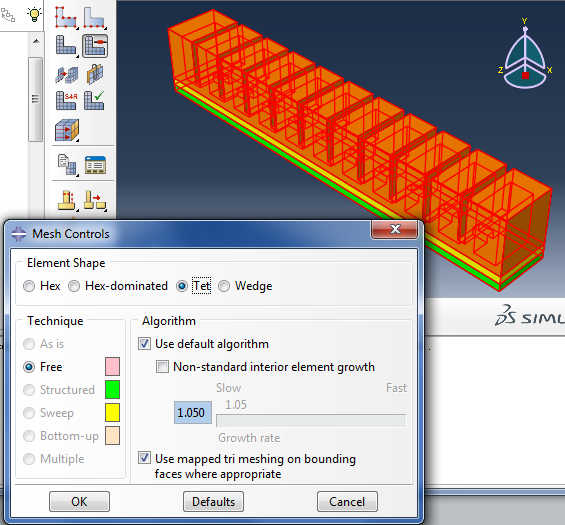

Seed the part with an ‘Approximate global size’ of your choosing. If the mesh size is too small, the model may become “stiff” to high distortions. But if it is too big, the mesh will not fit on well on the model face. Here we use a size of 3.
Mesh the part.
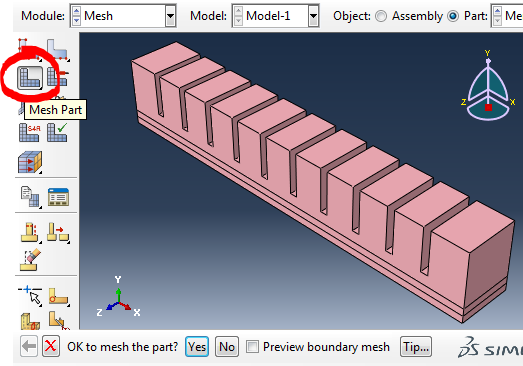
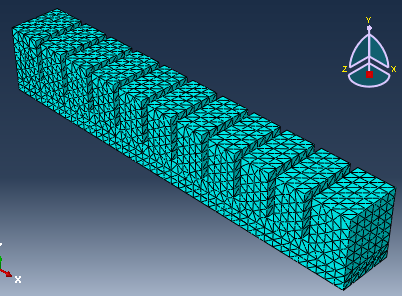
Set mesh type

Because we are using a hyperelastic material, a Hybrid element type for the mesh should be used. In the menu bar at the top of the Abaqus window, go to Mesh → Element type, then select the 3 parts for the region (click one by one so you don't include the paper layer).
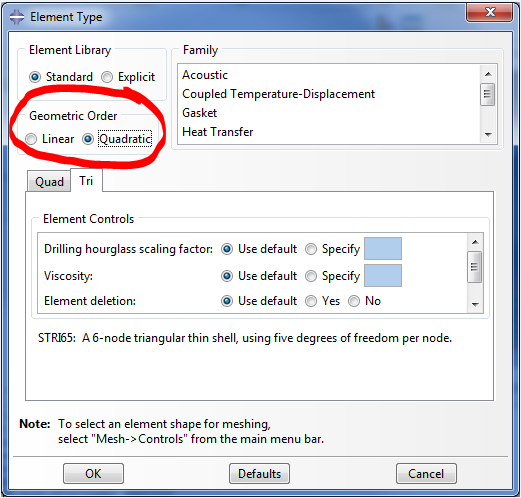
Activate the tick on ‘Hybrid Formulation’ for all the hyperelastic parts. Make sure ‘Geometric Order’ is Quadratic.
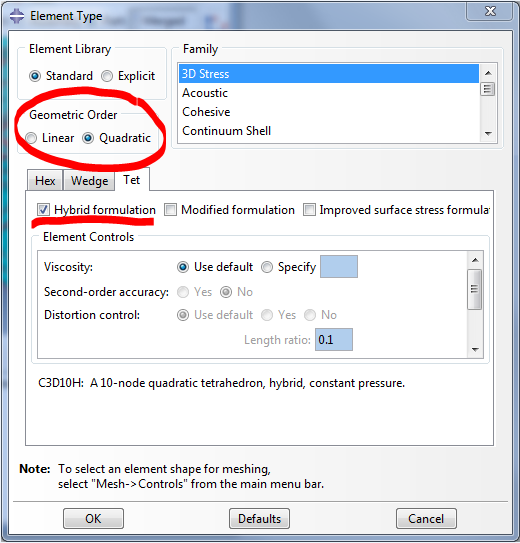
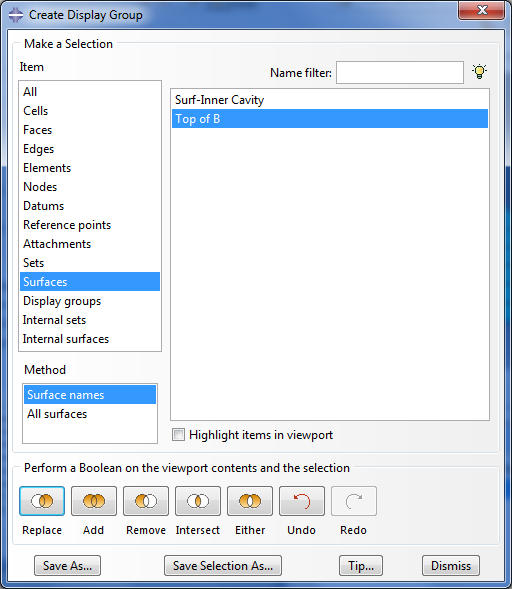
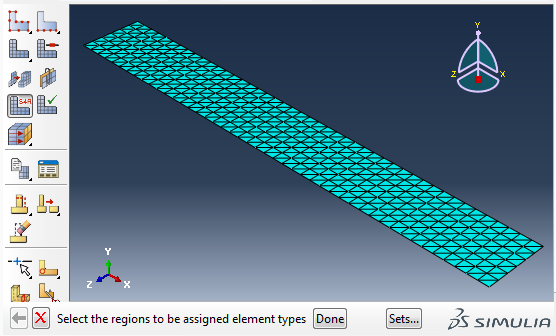
Now do the same for the skin (inextensible layer). First, isolate the surface using the Display Group Manager as before, then again go to Mesh > Element Type. In the new window, change the Geometric Order to Quadratic so that it matches the other elements.
Bibliography
Ilievski et al. (2011) Soft robotics for chemists.
Mosadegh et al. (2013) Pneumatic Networks for Soft Robotics that Actuate Rapidly.
Ogura et al. (2009) Micro pneumatic curling actuator: Nematode actuator.
Polygerinos et al. (2013) Towards a soft pneumatic glove for hand rehabilitation.
Shepherd et al. (2011) Multigait soft robot.
Sun et al. (2013) Characterization of silicone rubber based soft pneumatic actuators.
Contributors
Panagiotis Polygerinos
Bobak Mosadegh
Alexandre Campo